Guide · Updated September 2026

What does it look like?

Every picture here is the real app, current version, untouched. The same download runs on an Android phone, on the TV itself, on Windows, macOS and Linux, and in Chrome with a USB cable — so the screens below come in all three shapes. If you like what you see, the download is one section away.

On your phone

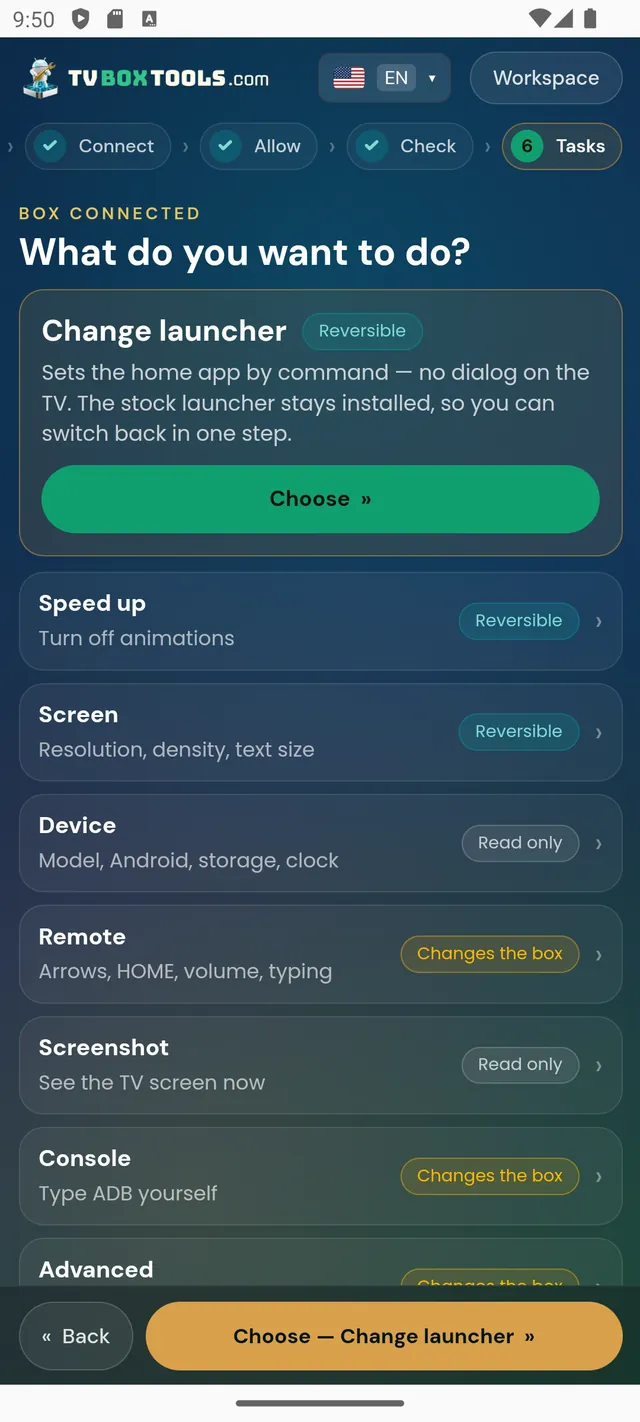
TV Box Tools Tasks hub on a phone: change launcher, speed up, screen, device, remote, screenshot, console
The Tasks hub: every job is one card, labelled reversible, read-only or gated.
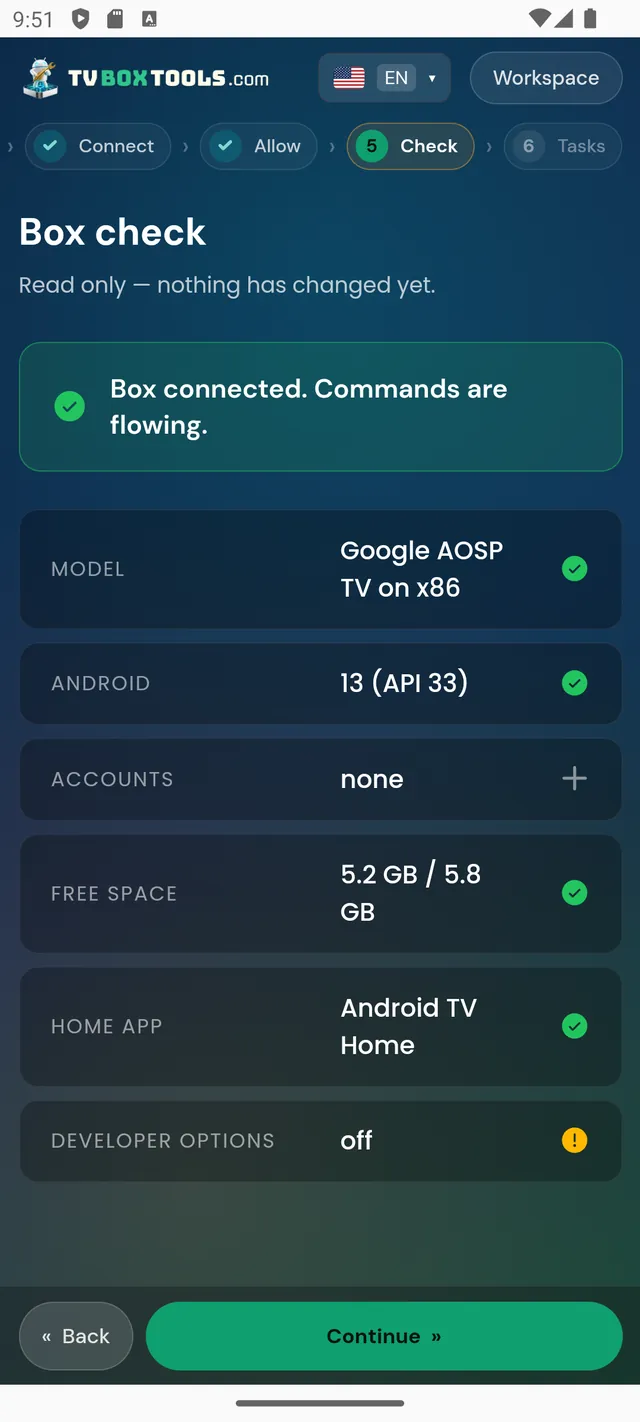
Box check screen: model, Android version, accounts, free space, home app — read only
Box check — read only, nothing has changed yet.
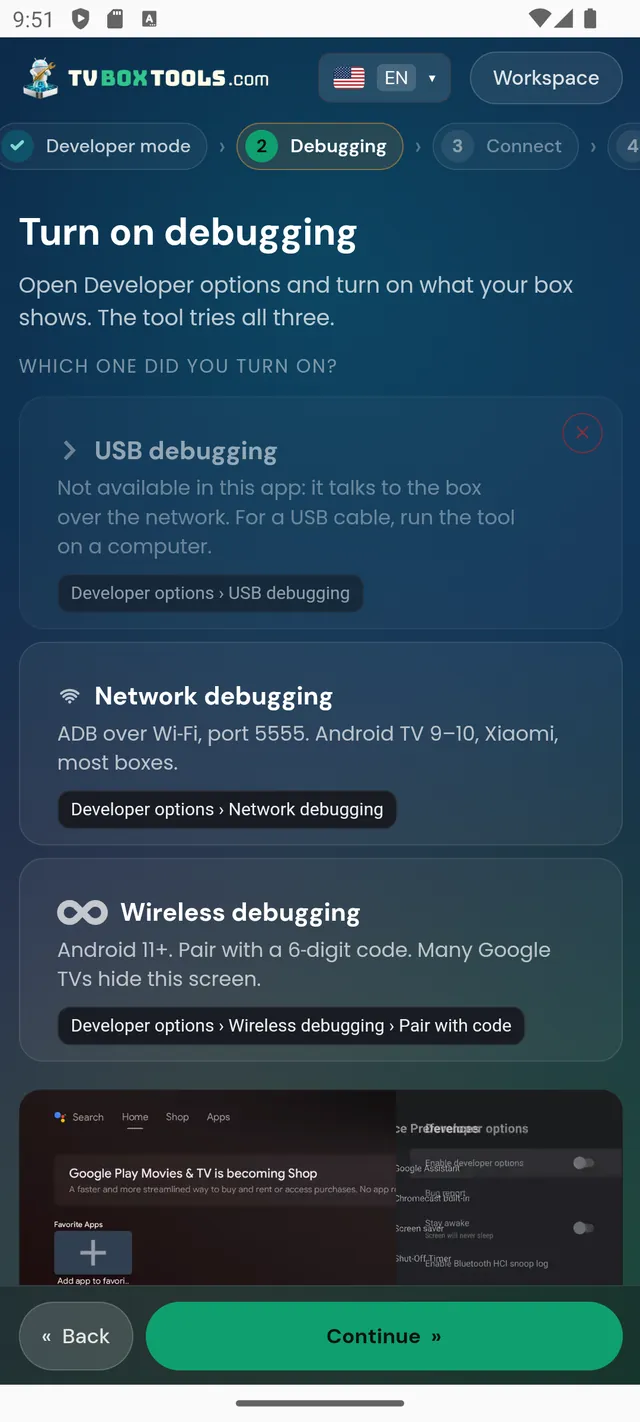
Turn on debugging: USB, network and wireless debugging explained, with a photo of the TV menu
The three debugging routes, with the TV's own menus pictured.
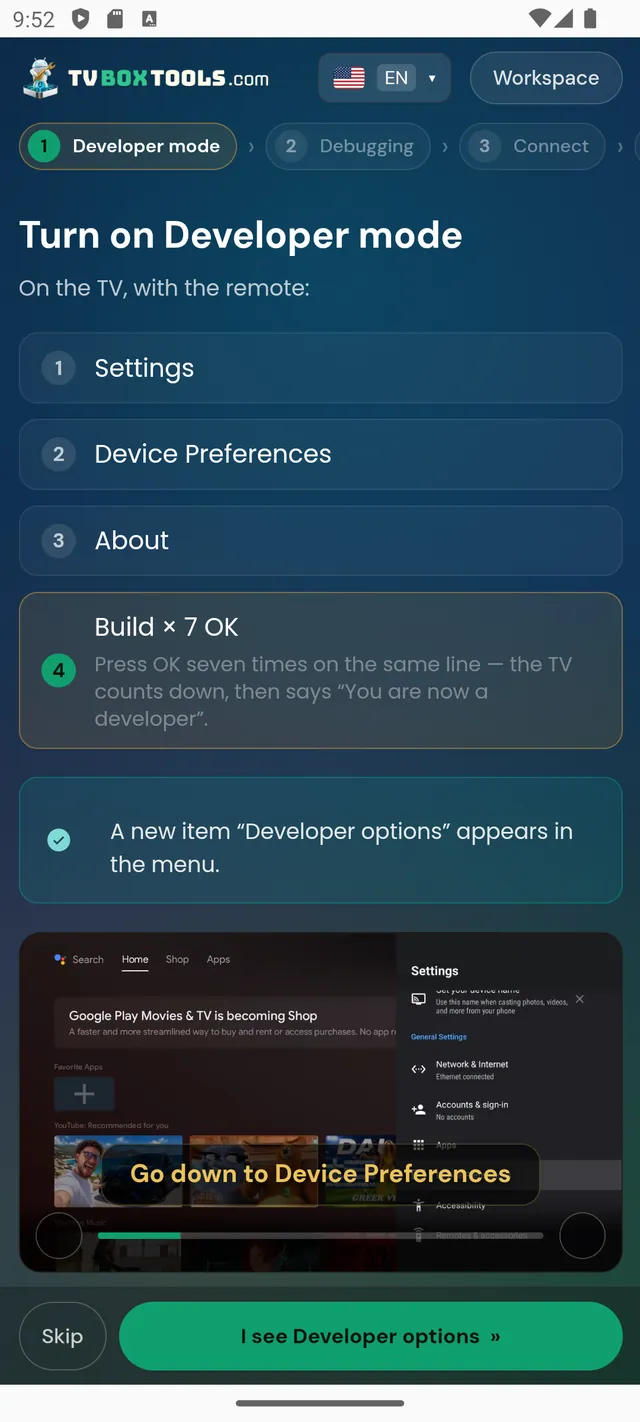
Developer mode wizard: Settings, Device Preferences, About, press Build seven times
Developer mode: Build ×7, shown on the real TV screen.
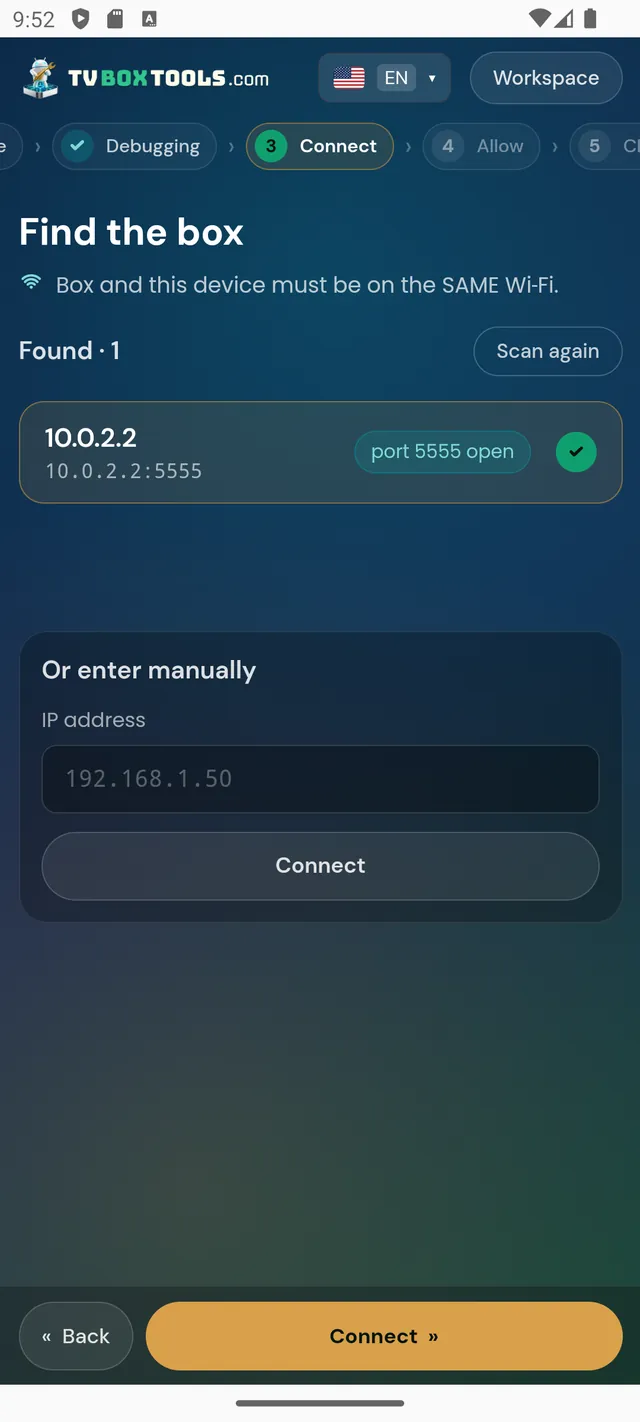
Find the box: network scan found a box with port 5555 open, manual IP entry below
Finding the box on the network — or by IP.
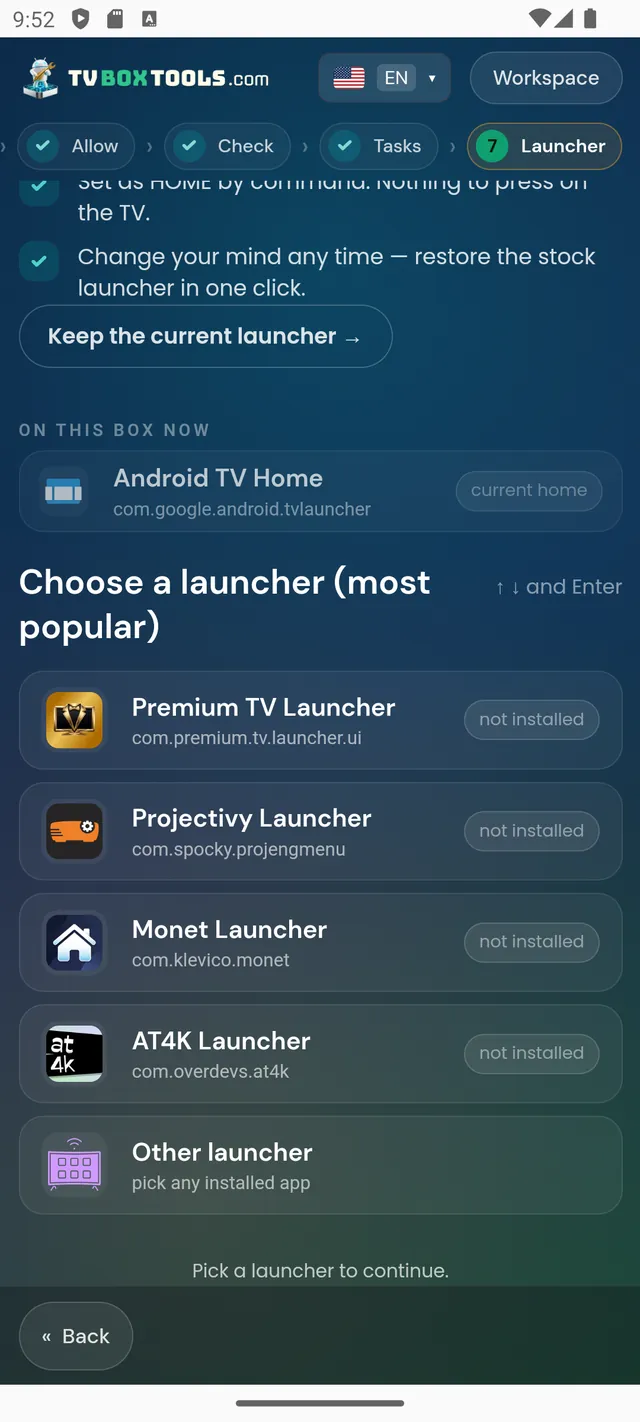
Which launcher should open on HOME: keep the current launcher or pick from the most popular
Which launcher opens on HOME — keep the current one, or pick.
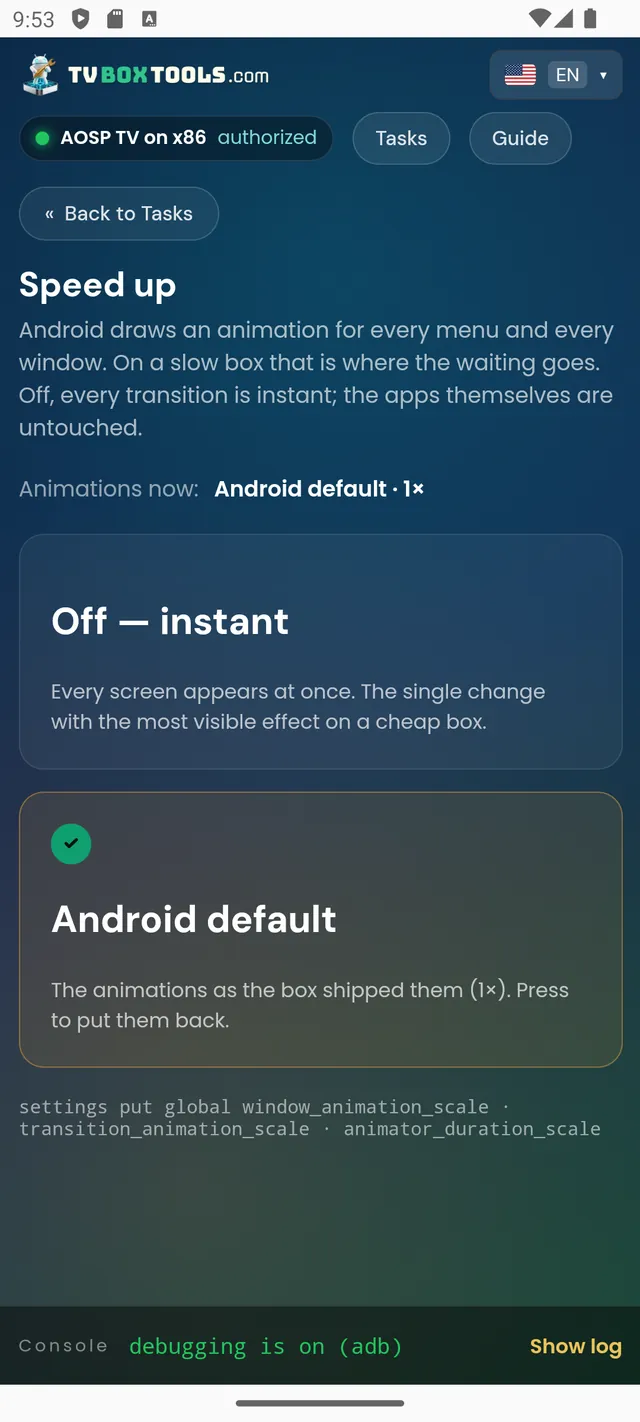
Speed up: turn Android animations off for instant transitions, apps untouched
Speed up: animations off, the apps themselves untouched.
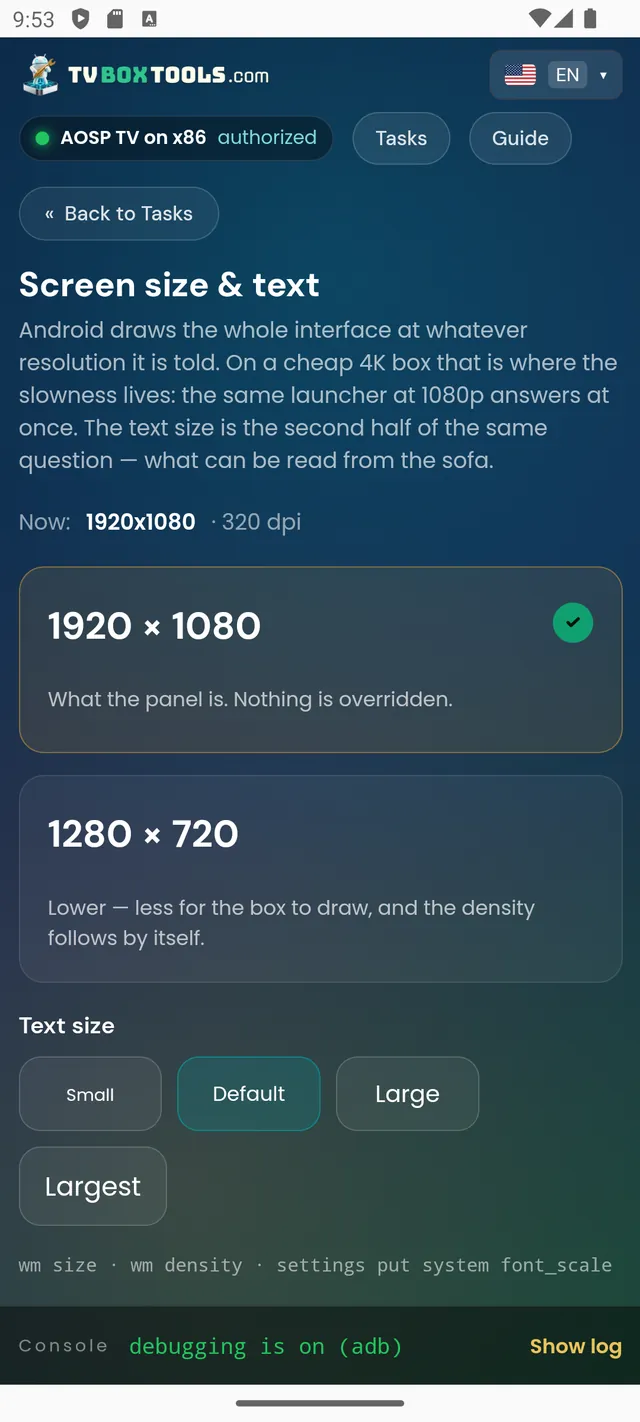
Screen size and text: resolution options and text size on a 1920x1080 panel
Resolution, density and text size — with the safe choices listed.
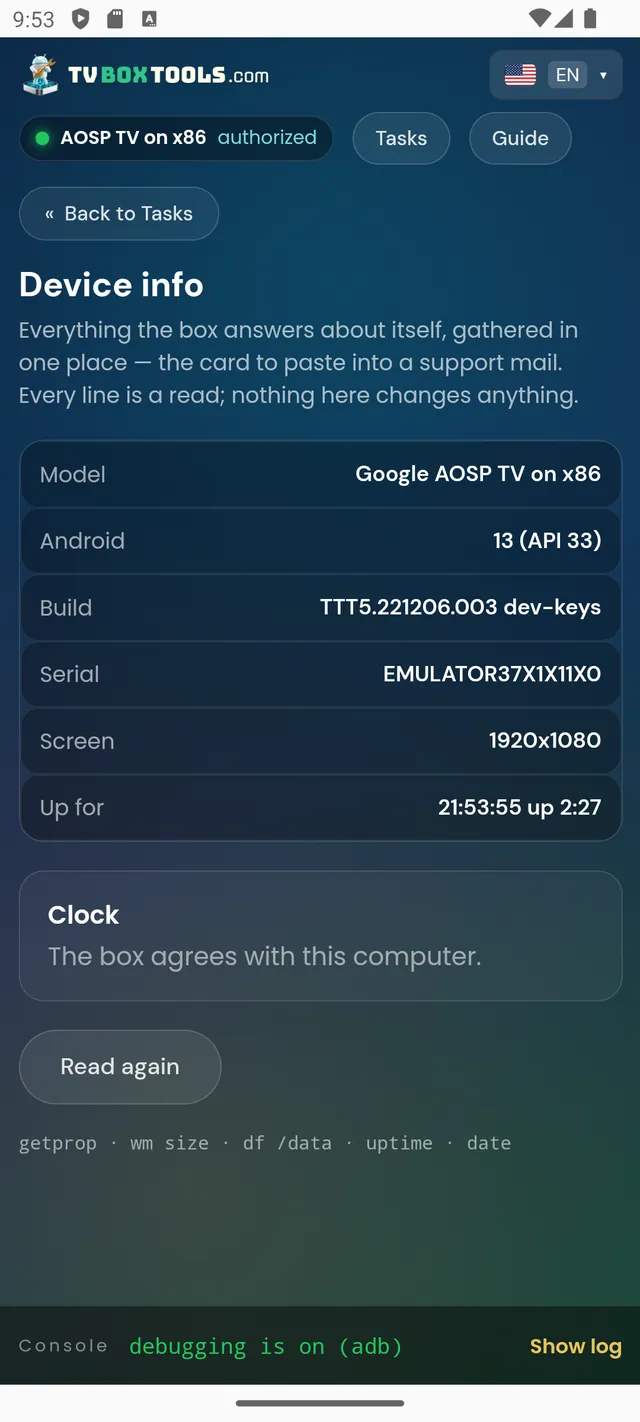
Device info: model, Android, build, serial, screen, uptime and a clock check
Device info: the card you paste into a support mail.
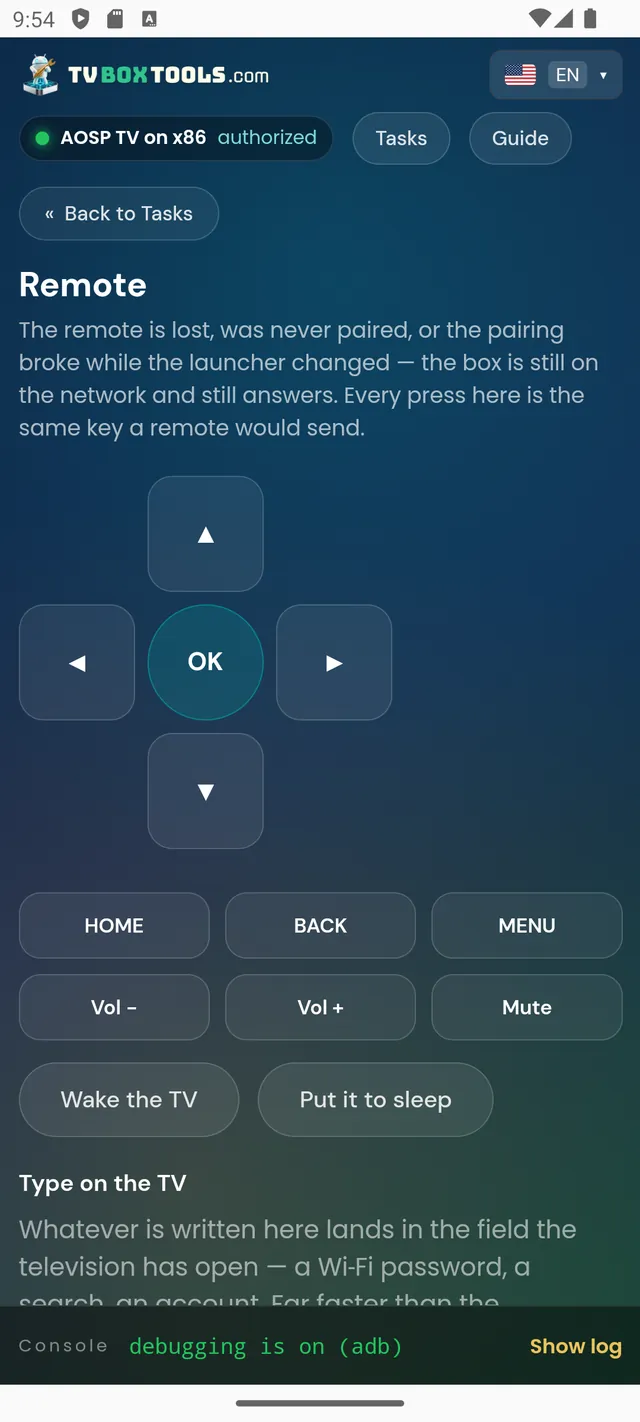
On-screen remote: arrows, OK, HOME, volume, wake and sleep, and typing on the TV
A full remote when the real one is lost — arrows, HOME, typing.
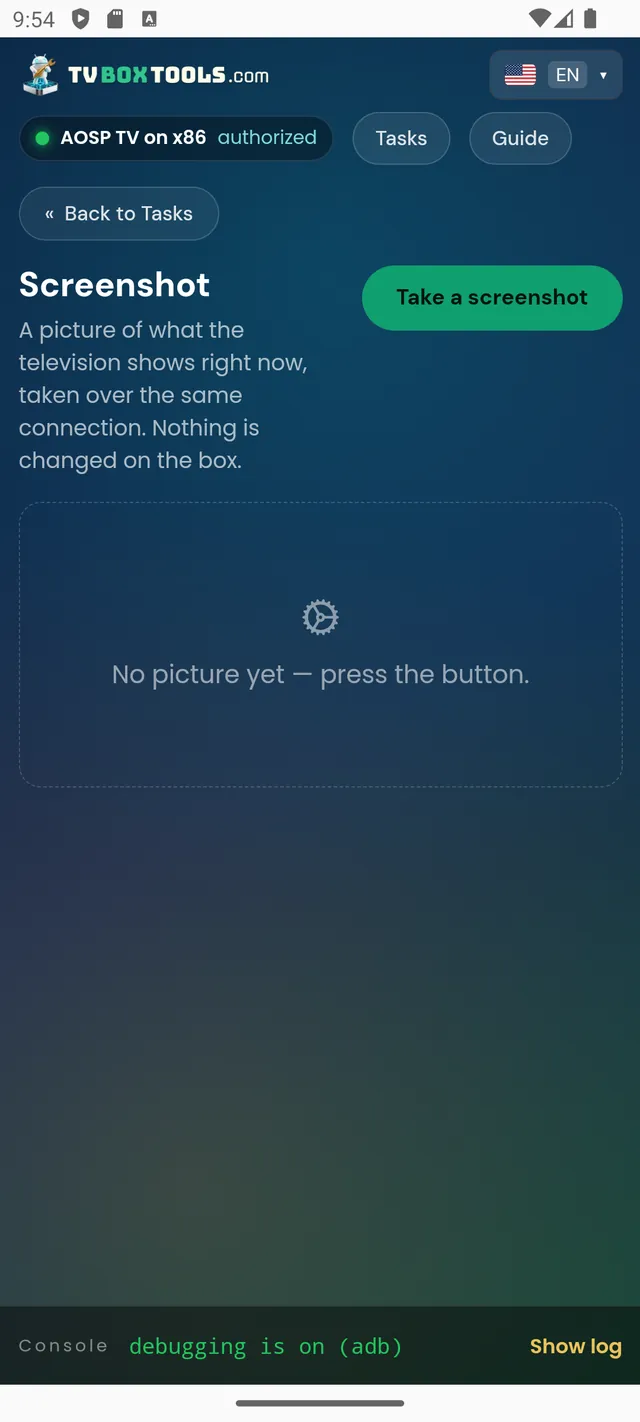
Screenshot tool: take a picture of what the television shows right now
See the TV screen right now, over the same connection.
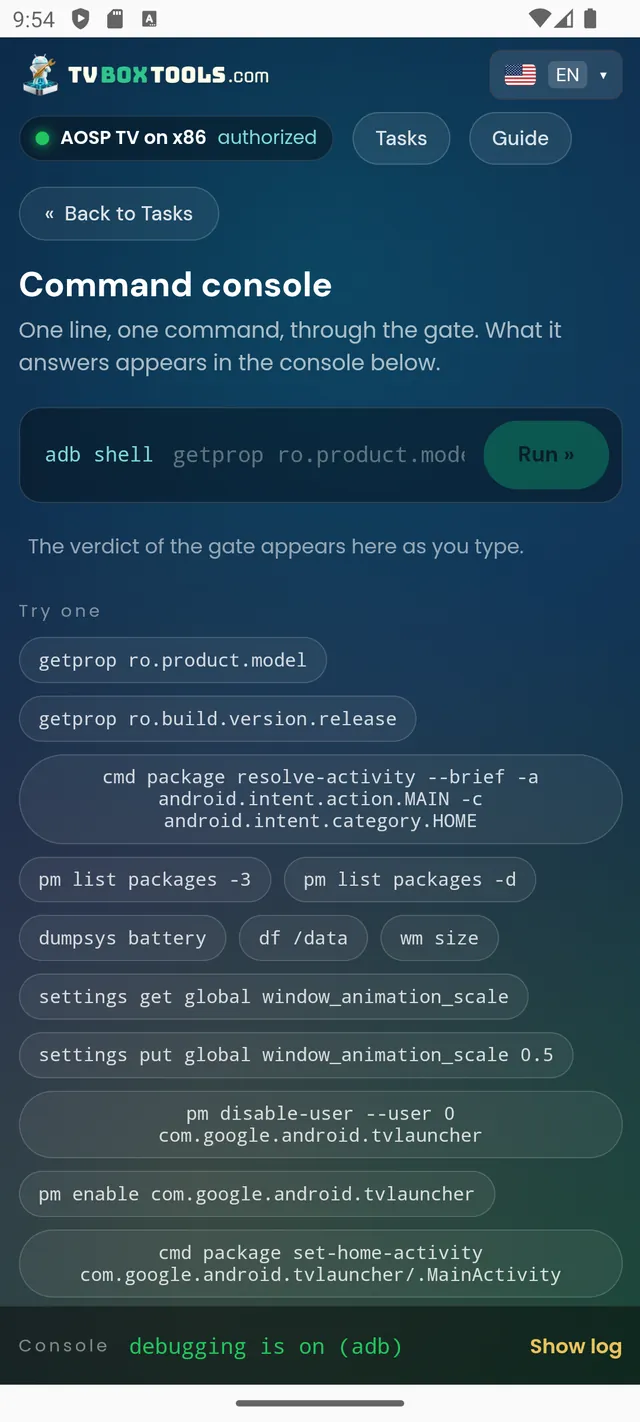
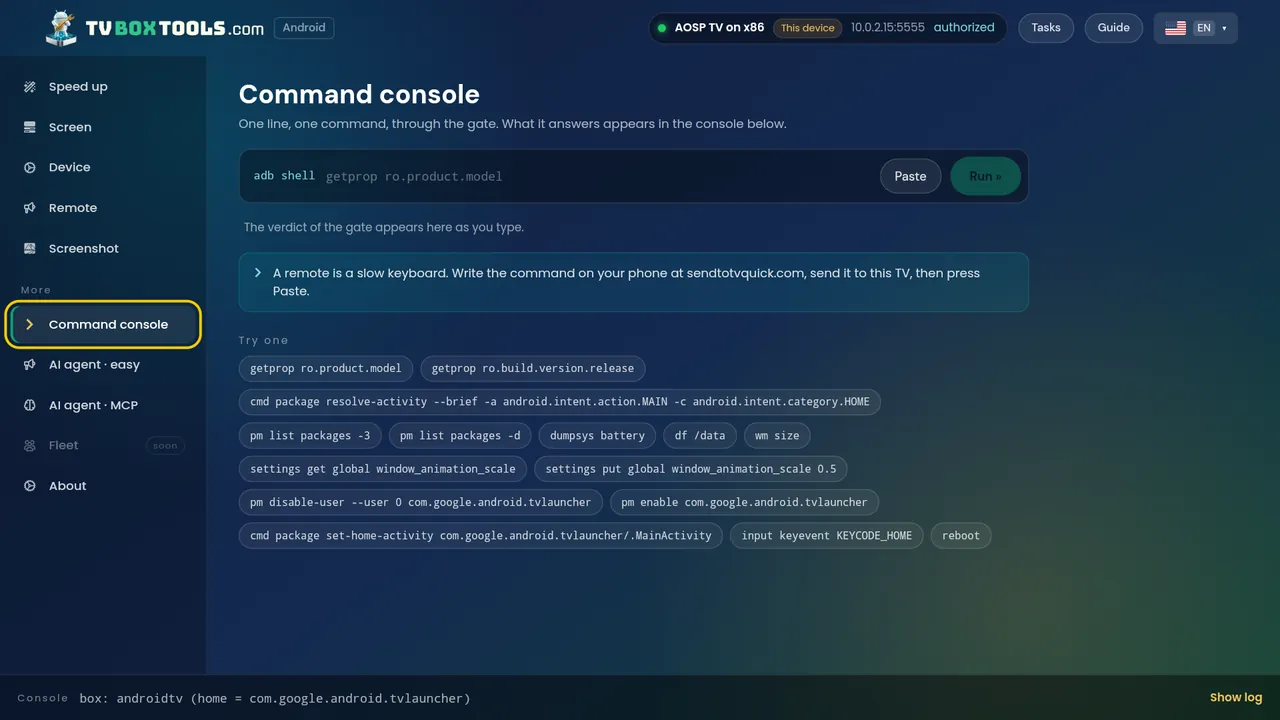
Command console behind the gate, with ready-made safe commands to try
The console, behind the gate: the verdict appears as you type.
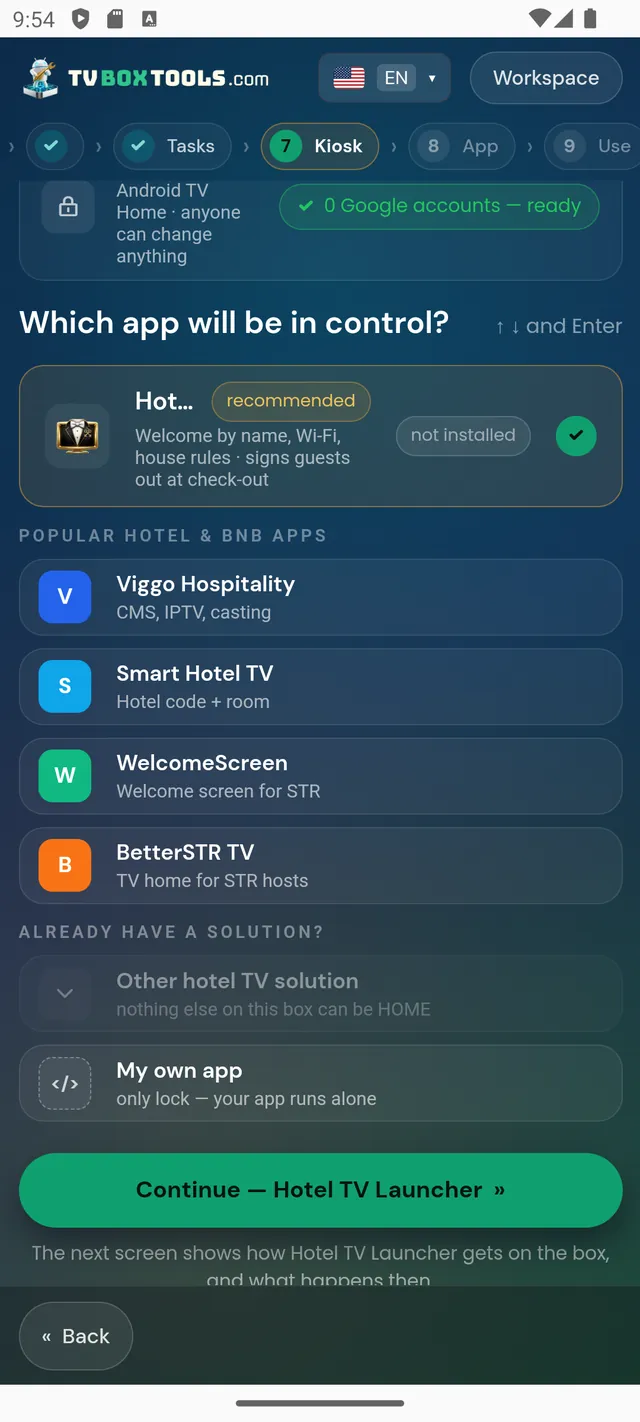
Hotel path: which app will be in control, Hotel TV recommended, other hospitality apps listed
The property path: which app will be in control — Hotel TV recommended.
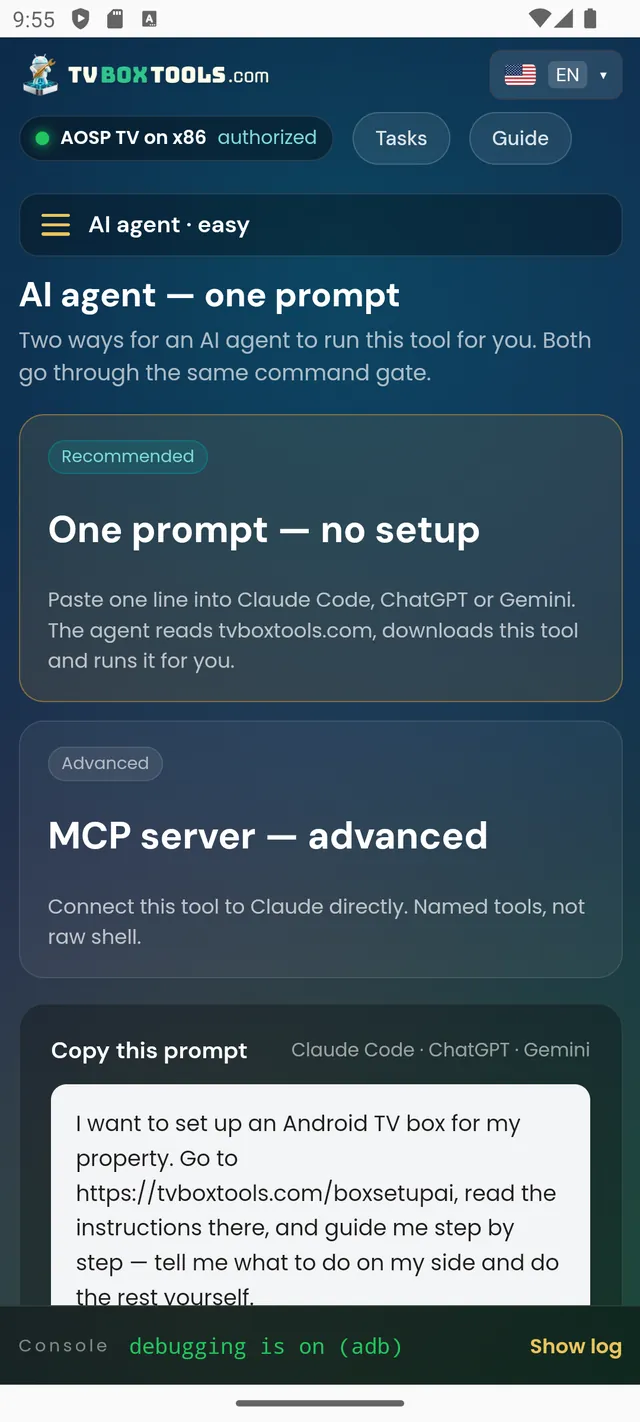
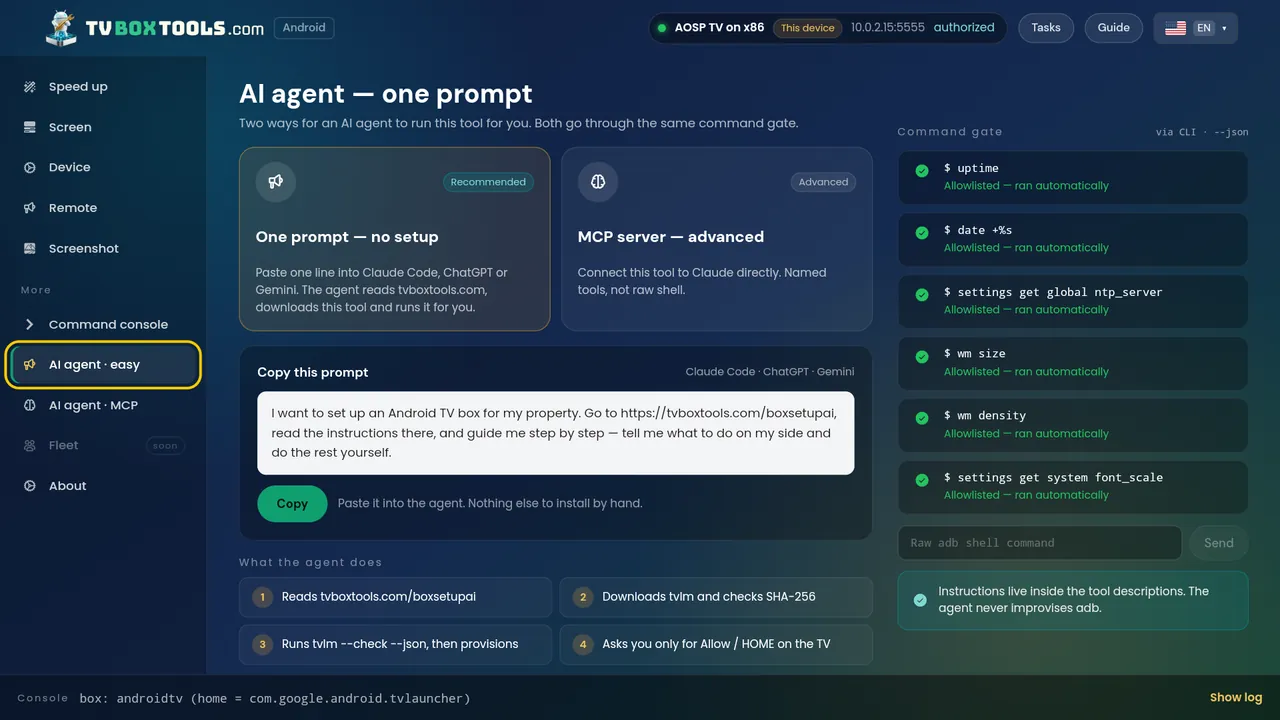
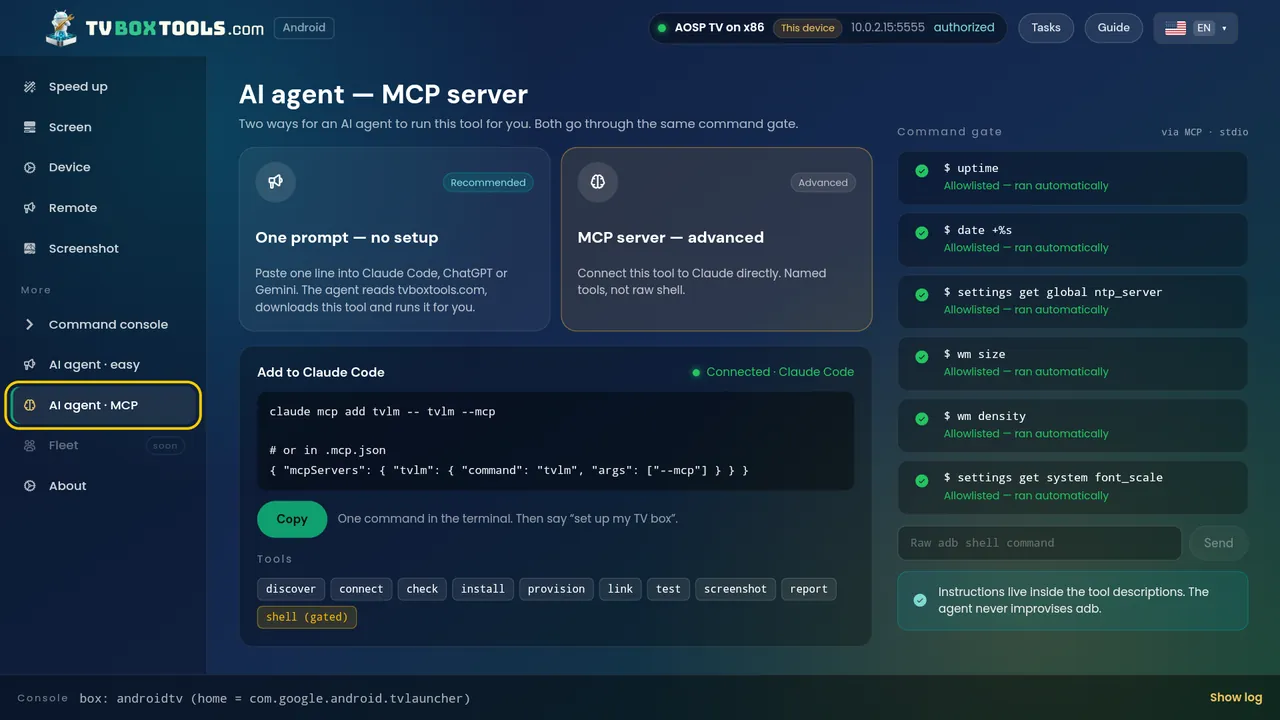
AI agent screen: one prompt with no setup, or an MCP server — both behind the command gate
AI agent: one prompt, or an MCP server — same command gate.

On the TV itself

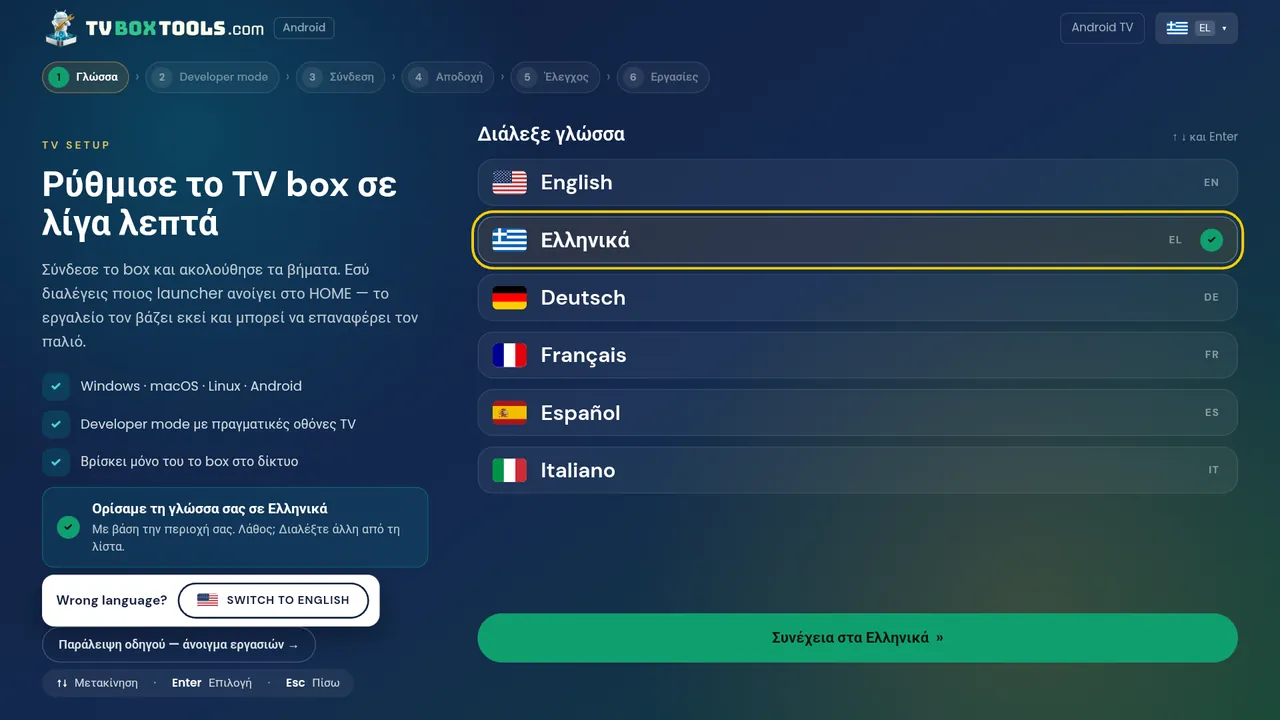
TV Box Tools on the TV: language picker with English, Greek, German, French, Spanish and Italian
It opens in your language — picked from your region, changed with one press.
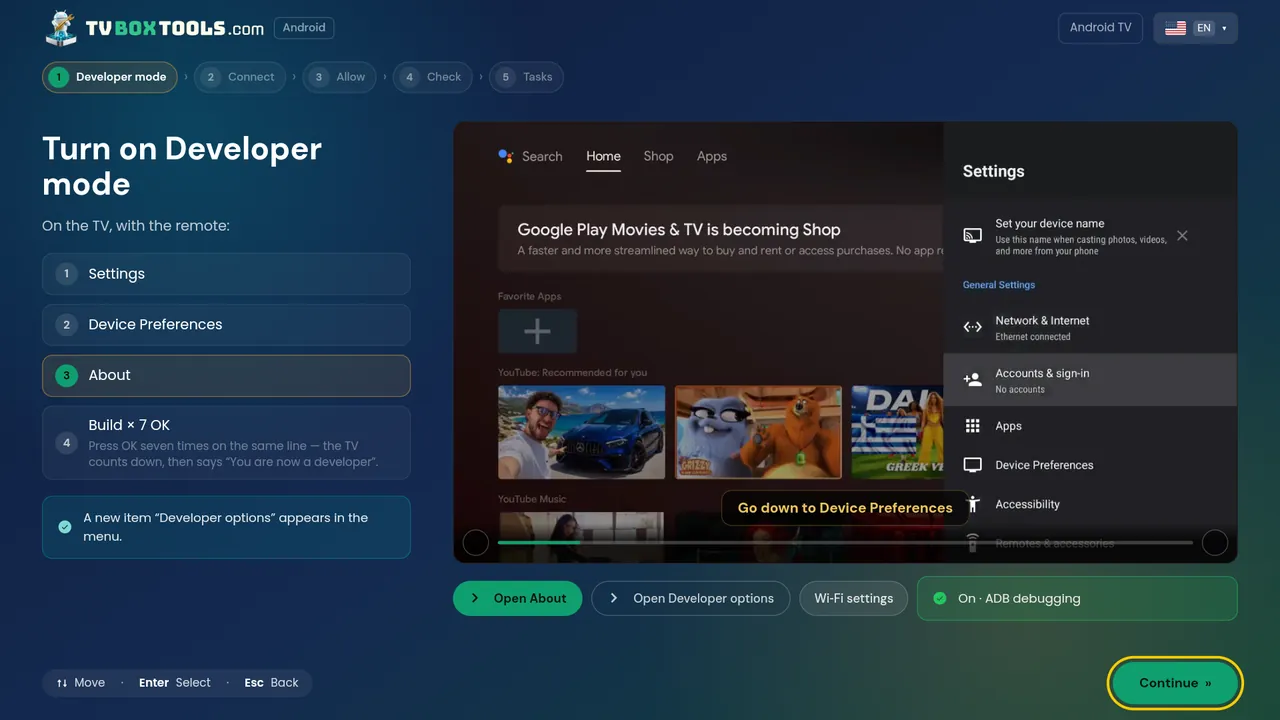
Developer mode on the TV: Settings, Device Preferences, About, press Build seven times — with the real Android TV menu alongside
Developer mode: Build ×7, with the TV's own screen pictured beside the steps.
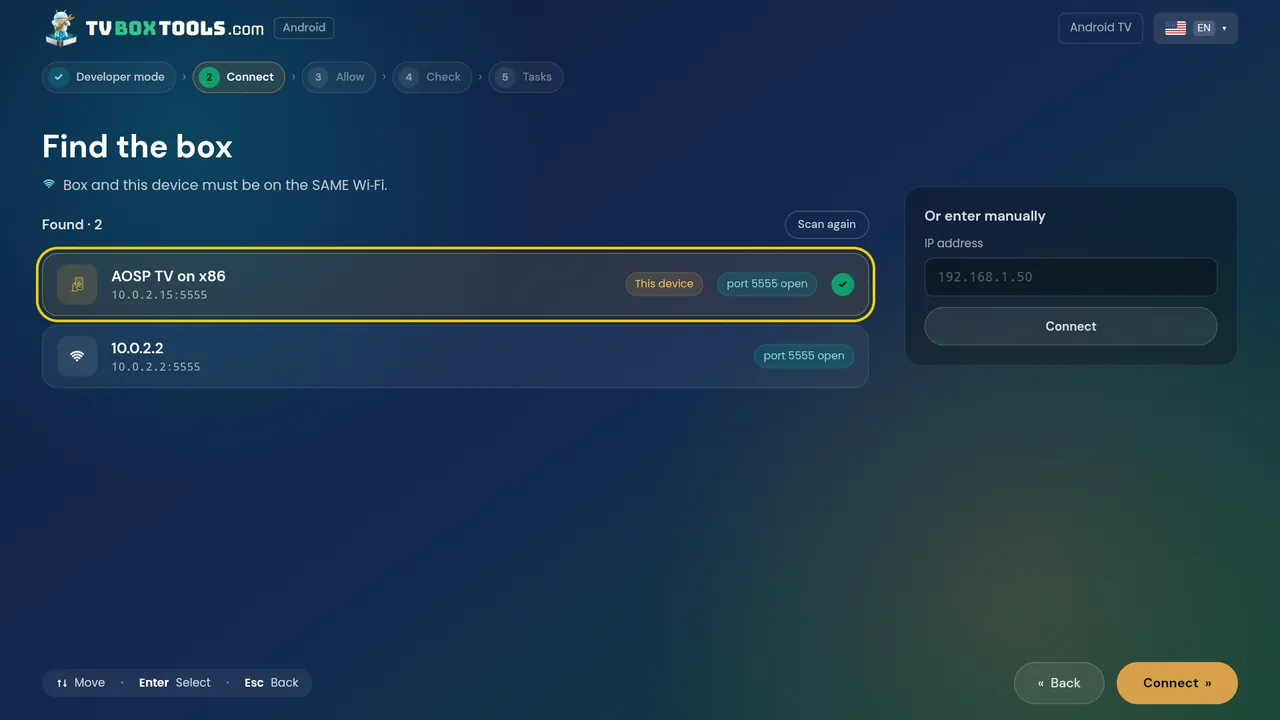
Find the box on the TV: this device and another box found on the network, port 5555 open
Finding boxes from the TV — this device and the others, or by IP.
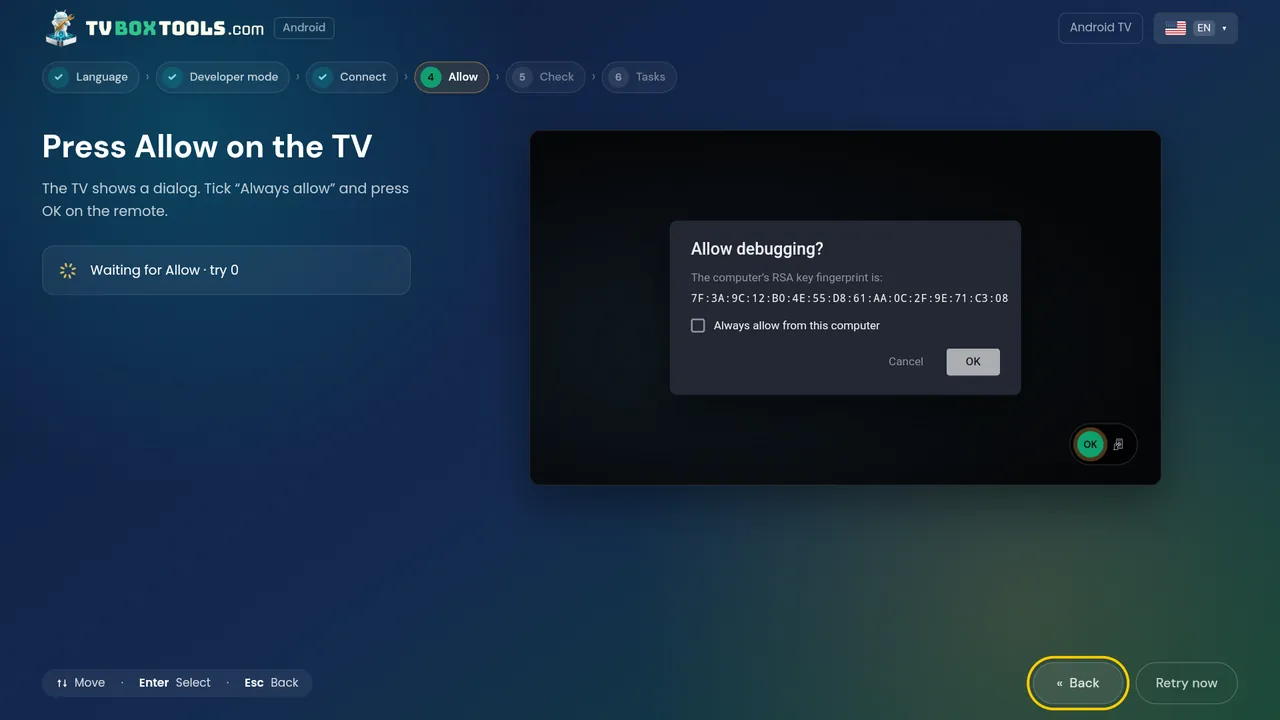
Waiting for Allow: the TV shows the debugging dialog with the computer's RSA fingerprint
Waiting for Allow — the dialog that appears on the television, drawn here too.
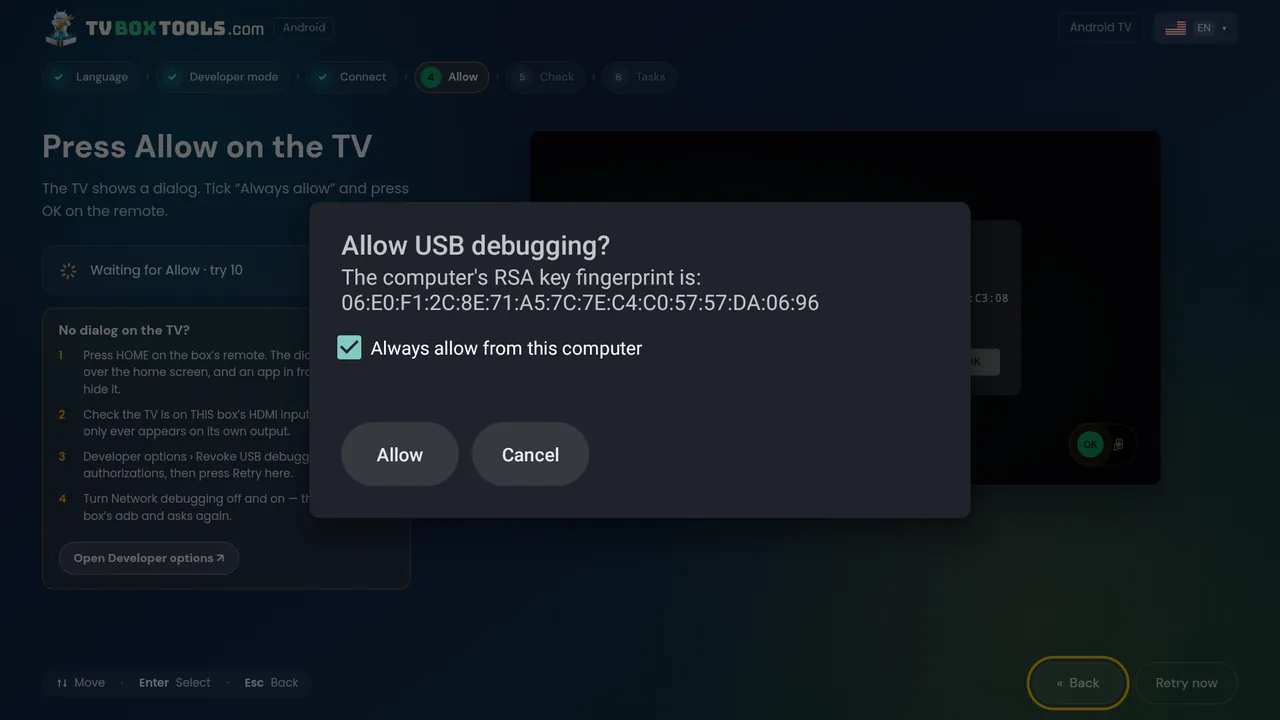
No dialog on the TV? Four things to try, with the Allow USB debugging dialog shown
No dialog on the TV? Four things to try, before anyone gives up.
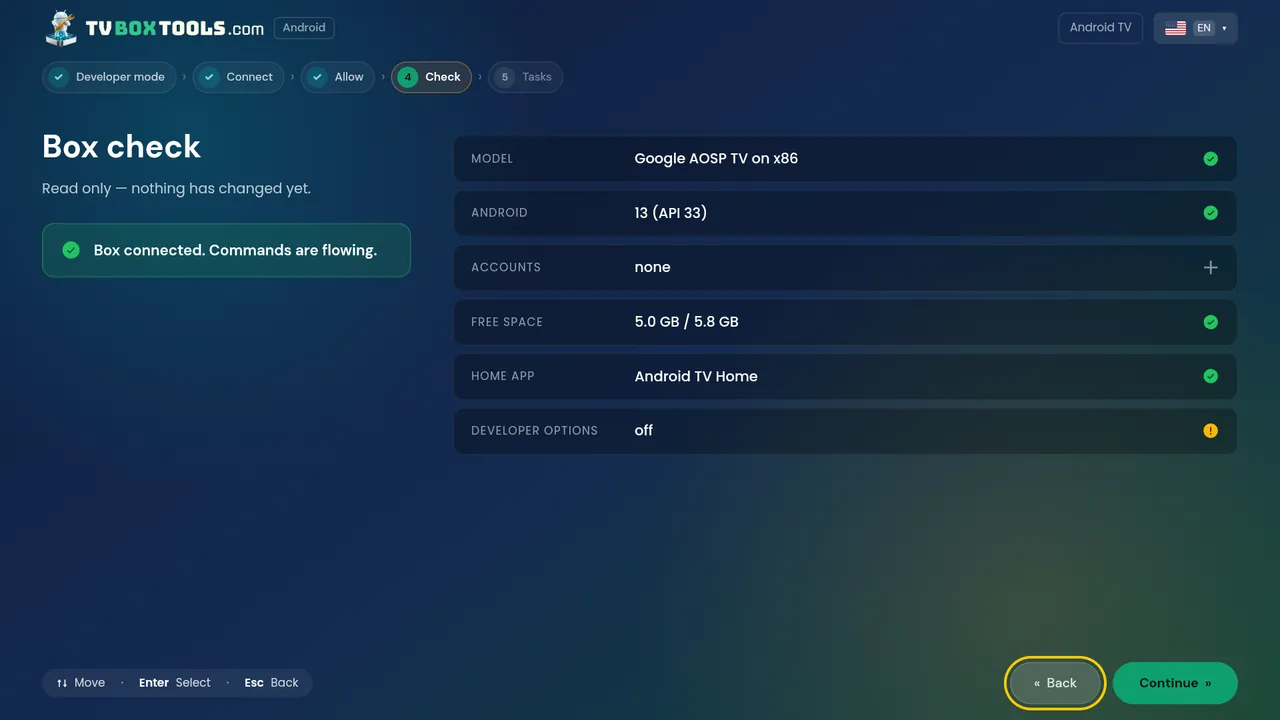
Box check on the TV: model, Android version, accounts, free space, home app, developer options
Box check — read only, nothing has changed yet.
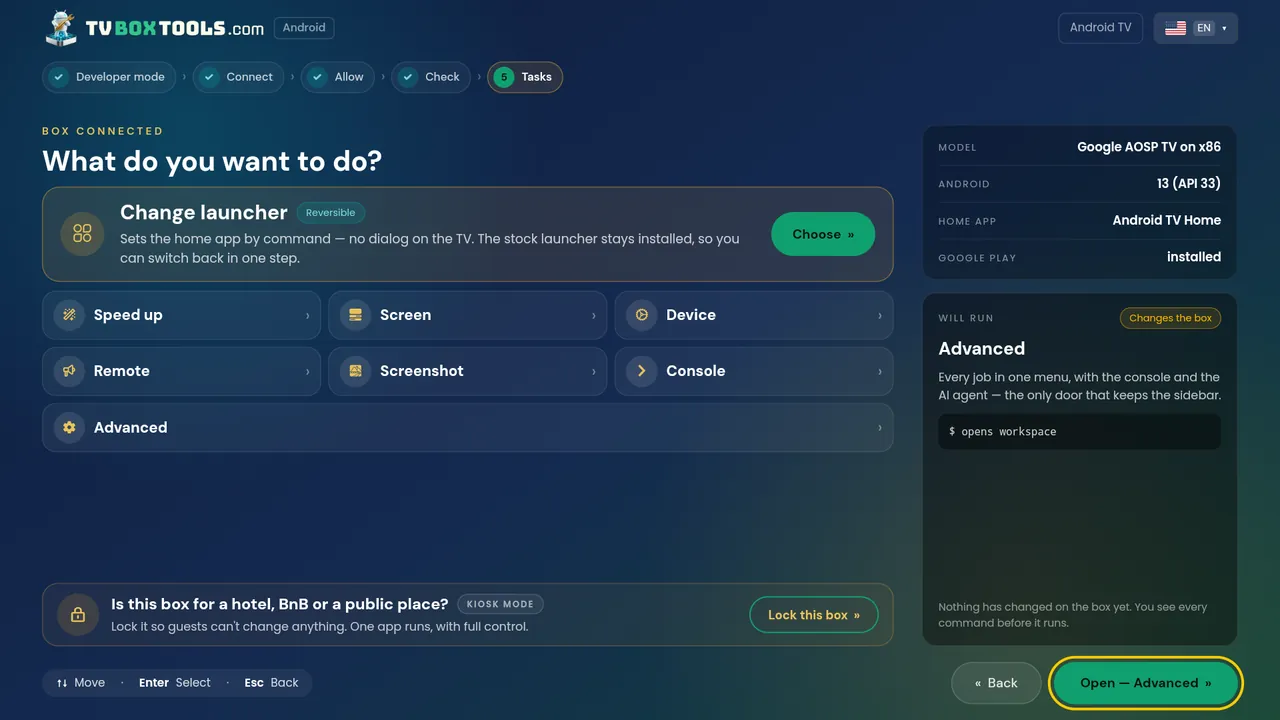
The Tasks hub on the TV: change launcher, debloat, install APK, back up apps, free space, speed up, screen, device, remote, screenshot, console
The Tasks hub, with the commands it will run shown before it runs them.
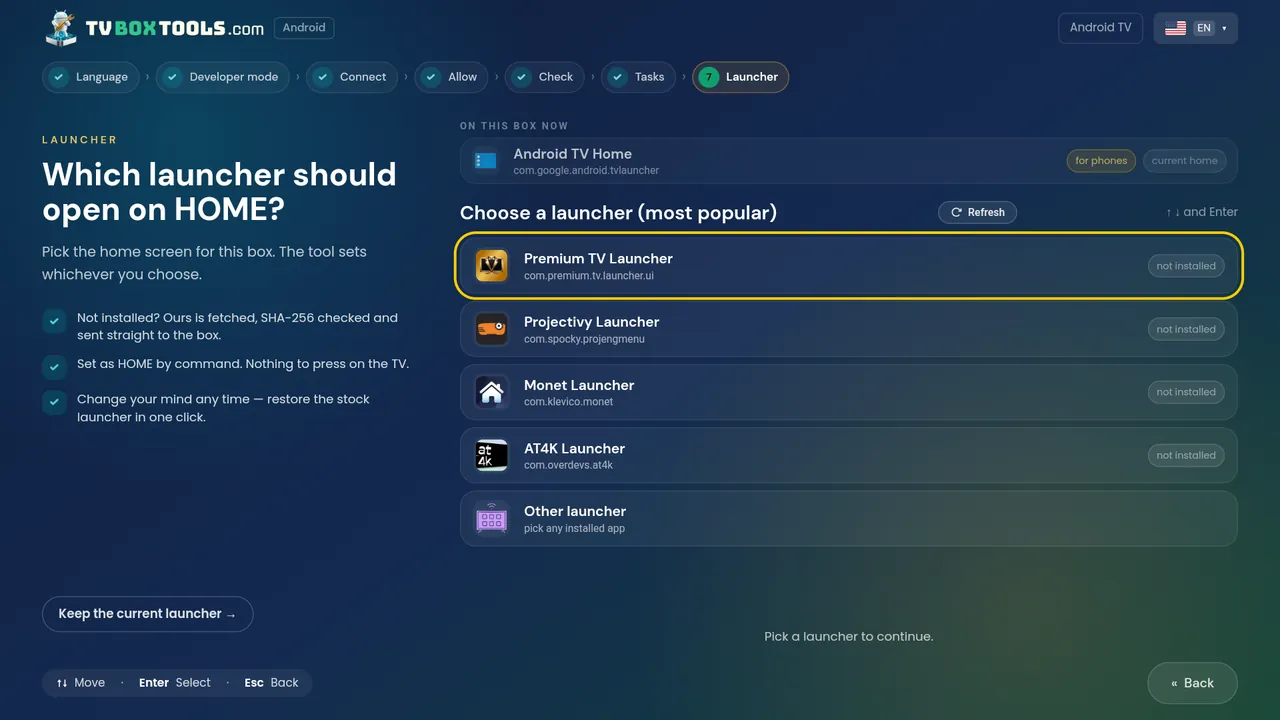
Which launcher should open on HOME, on the TV: keep the current one or pick from the most popular
Which launcher opens on HOME — keep the current one, or choose.
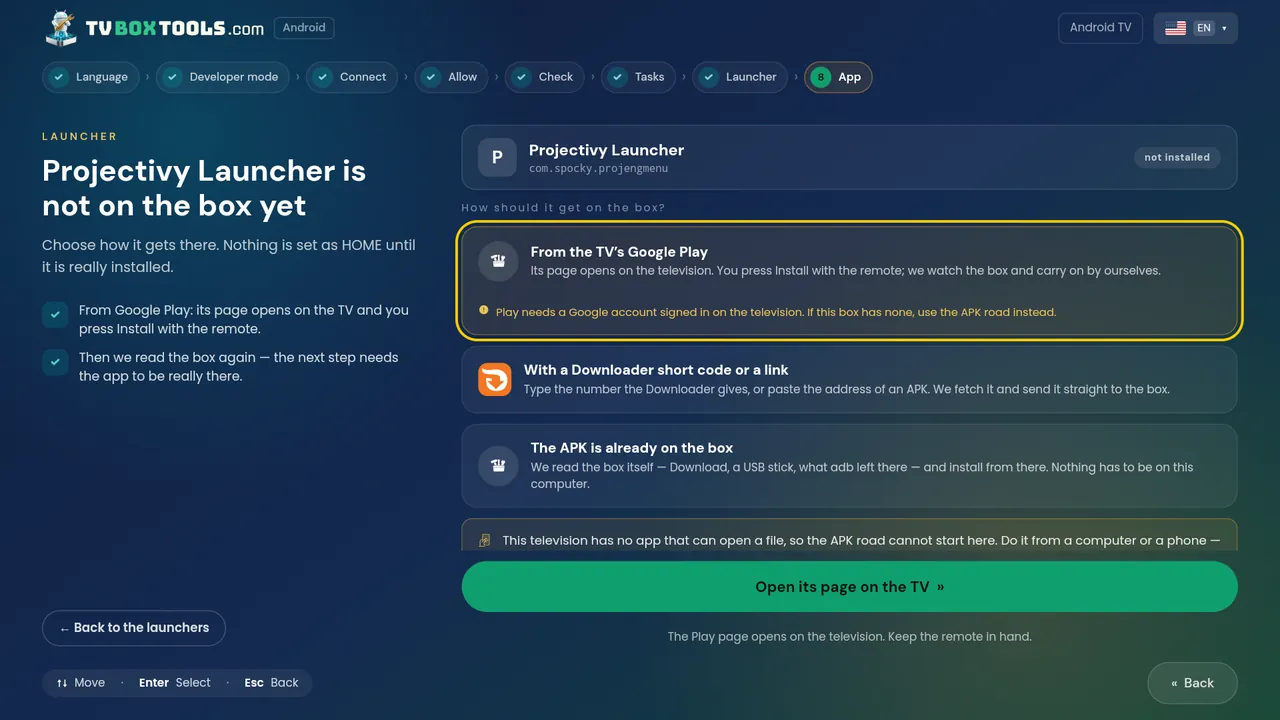
Three ways an app gets onto the box: the TV's Google Play, a Downloader short code or link, or an APK already on the box
Not on the box yet? Three roads: the TV's Play, a Downloader code or link, or an APK already there.
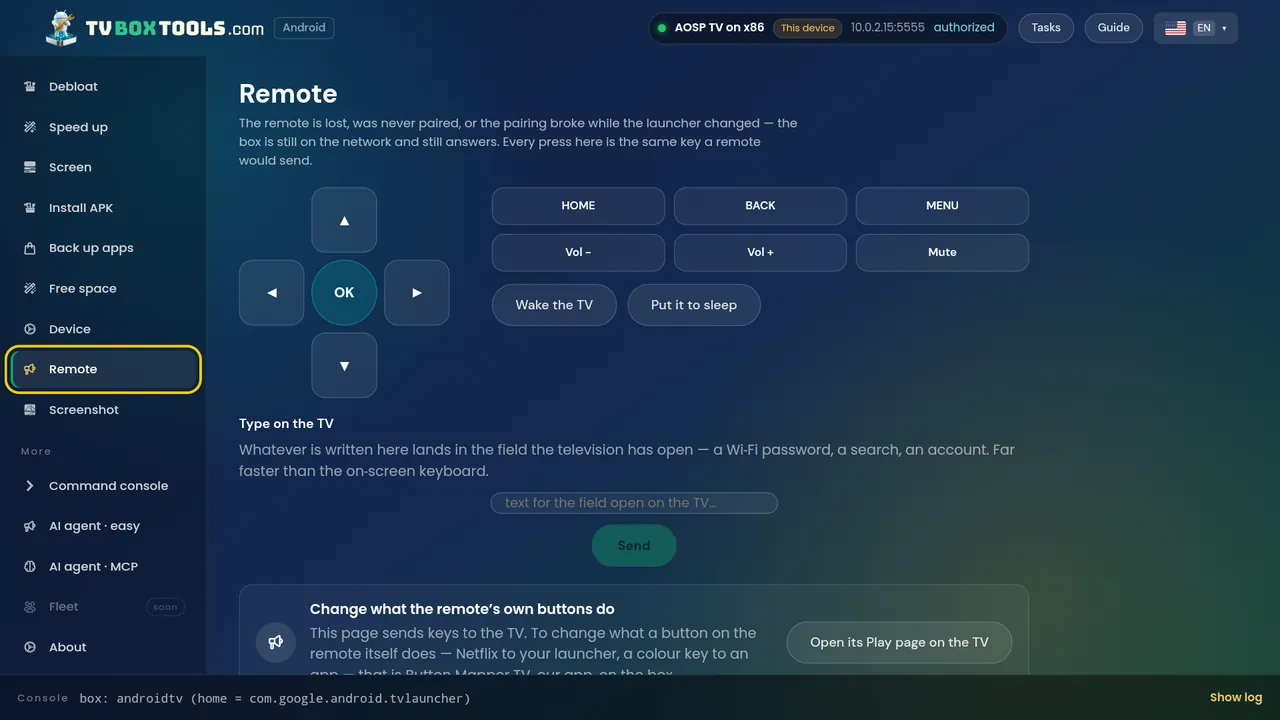
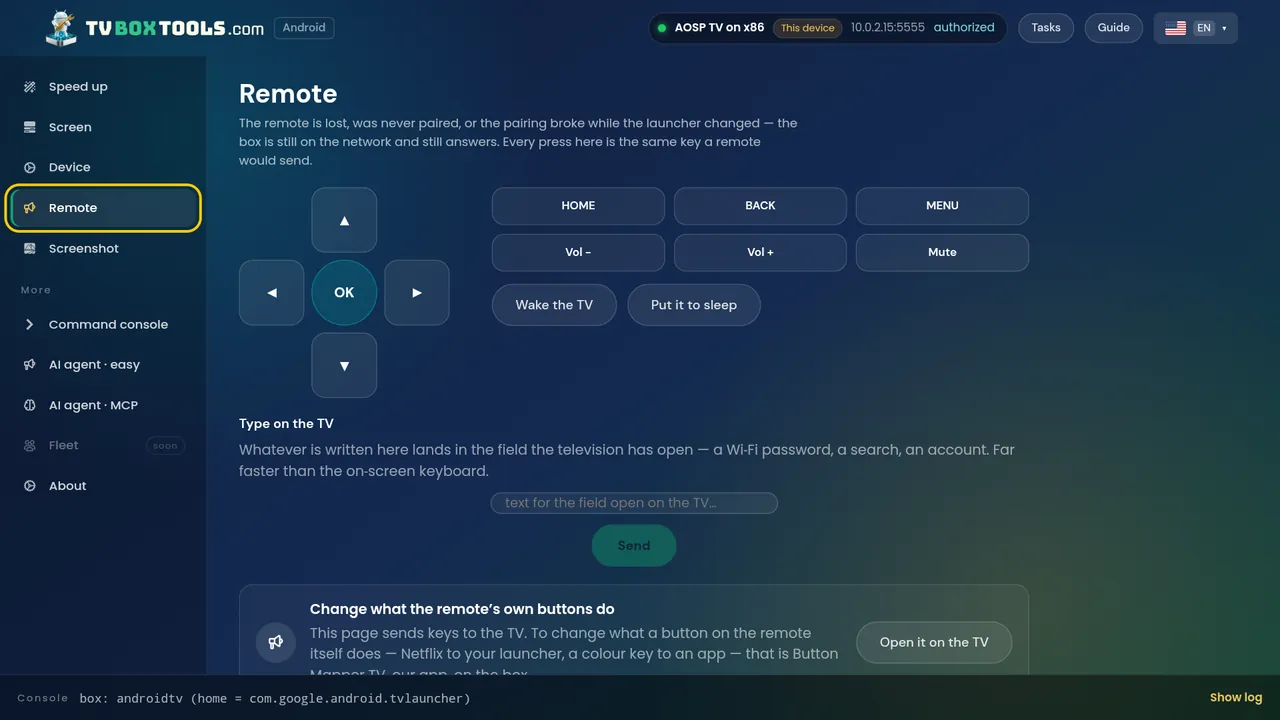
On-screen remote on the TV: arrows, OK, HOME, back, menu, volume, wake and sleep, and typing into the field the TV has open
A full remote when the real one is lost — and typing, far faster than the on-screen keyboard.
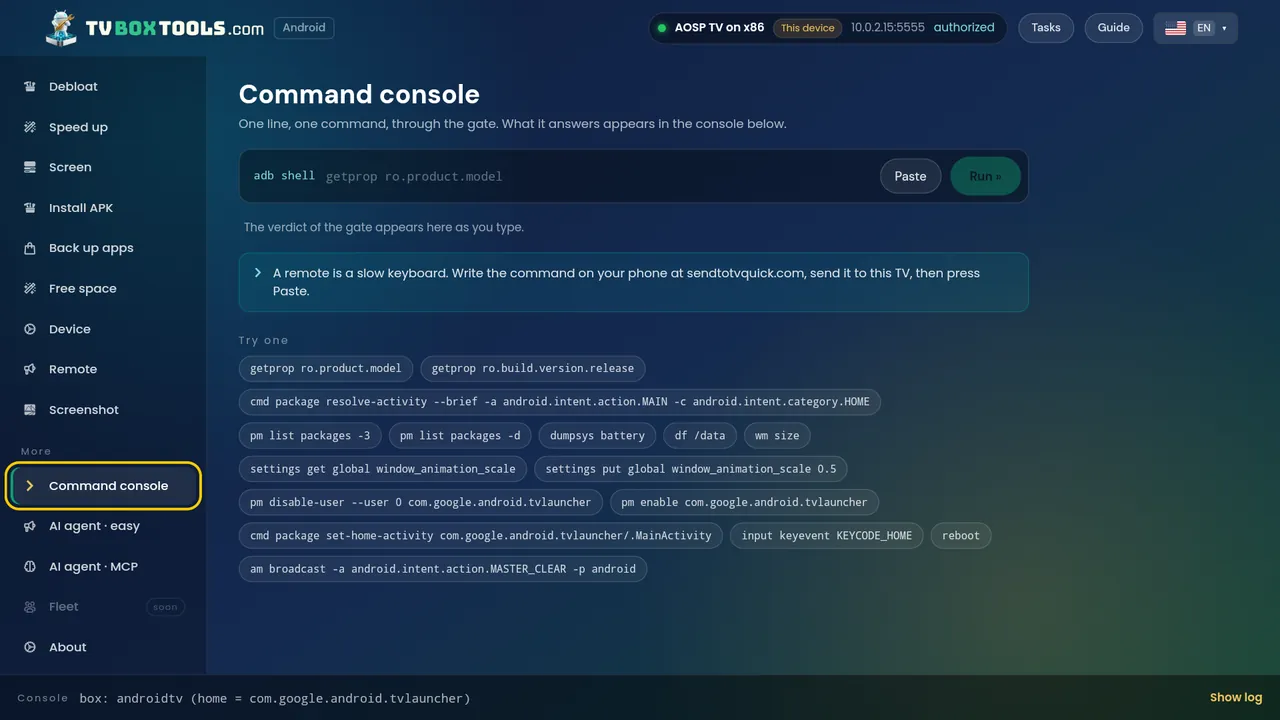
Command console on the TV, behind the gate, with ready-made safe commands to try
The console, behind the gate: one line, one command, the verdict as you type.
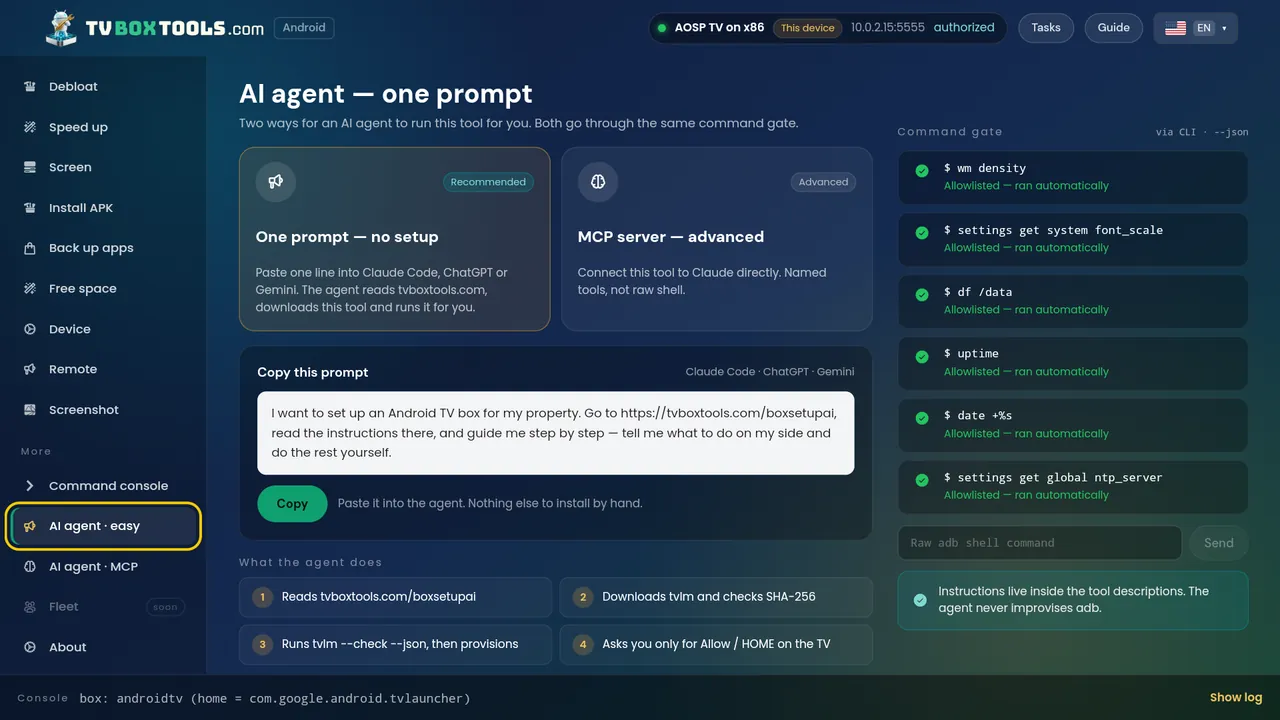
AI agent on the TV: one prompt with no setup, with the command gate's log alongside
One prompt for an AI agent — every command it runs appears in the log beside it.
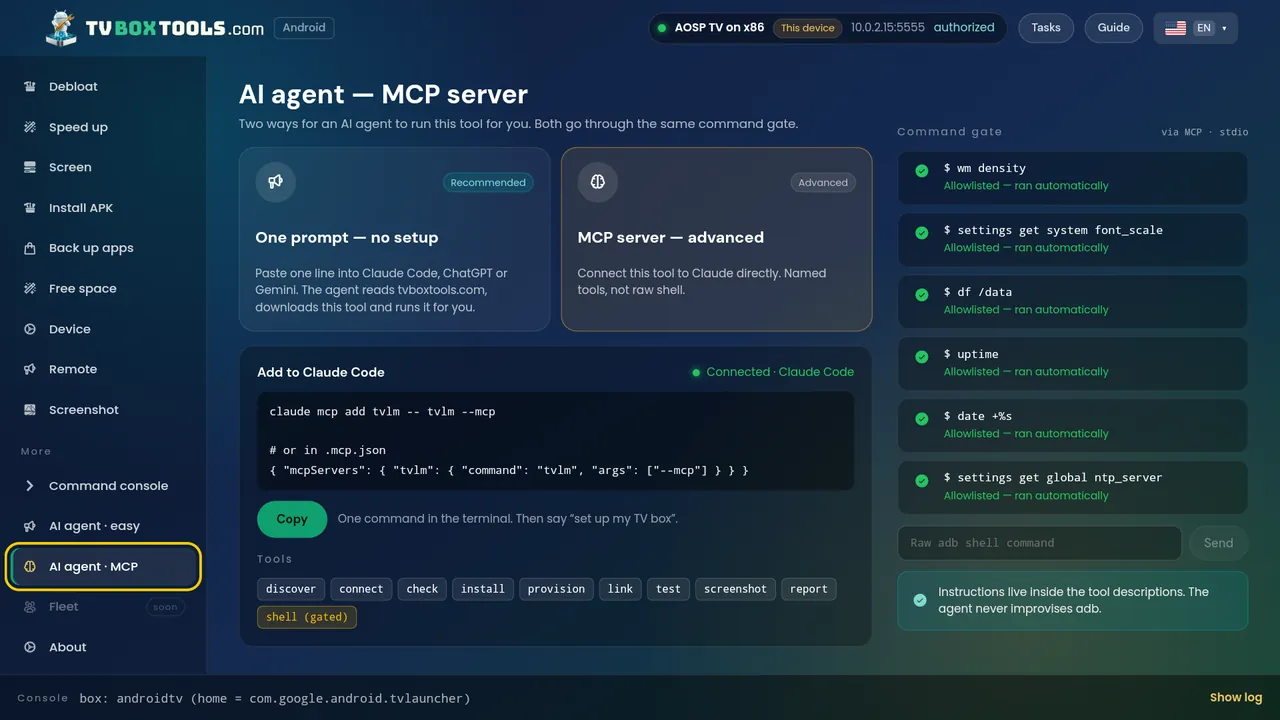
MCP server on the TV: claude mcp add tvlm, named tools behind the same gate
The MCP server: named tools, not raw shell — behind the same gate.

On your computer

The desktop app: on-screen remote with sidebar navigation
The desktop app: remote.
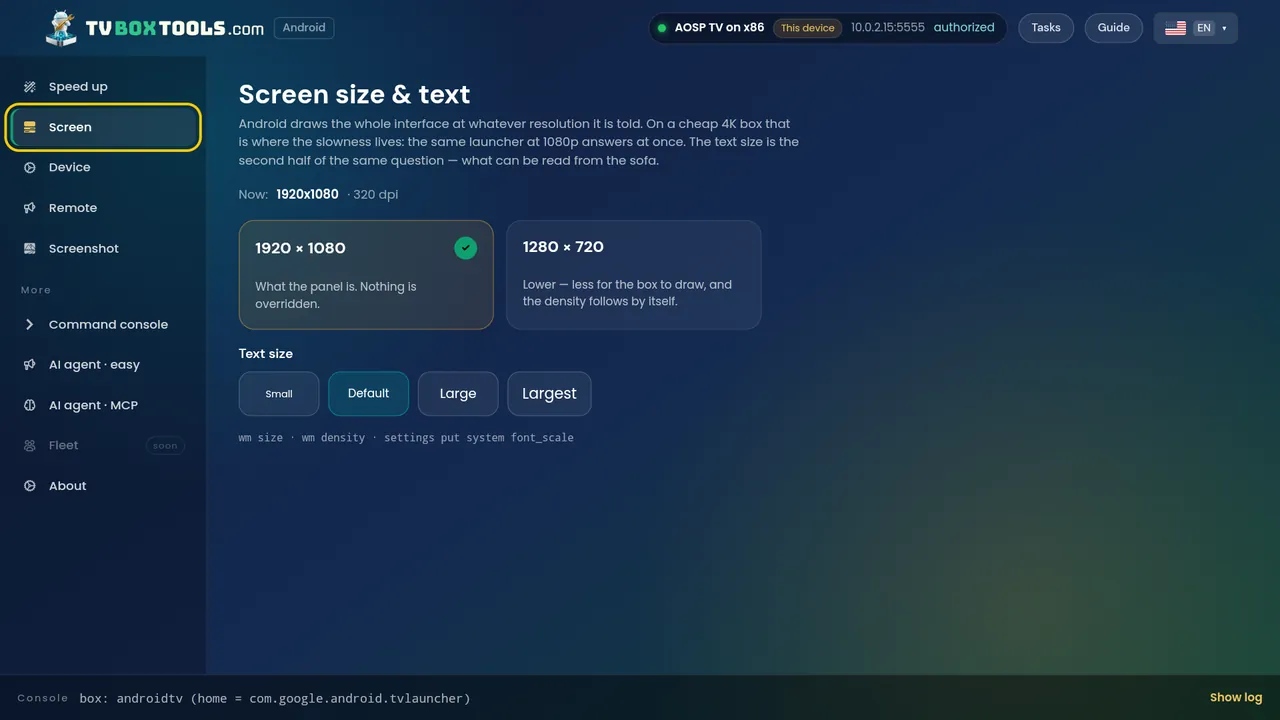
The desktop app: screen size and text settings
The desktop app: screen size and text.
The desktop app: command console with the gate's verdicts in the log
The desktop app: the console, with the gate's verdicts in the log.

For AI agents

AI agent one-prompt screen on desktop, with the command gate log alongside
One prompt for an AI agent, with the command log alongside.
MCP server screen on desktop: claude mcp add tvlm, named tools behind the gate
The MCP server: named tools, not raw shell — behind the same gate.

Like what you see?

Free · Open source · No account · Undo with one tap
Download TV Launcher Manager

or on the TV, with the Downloader app — code2123033Downloader by AFTVnewsDownloader TV

Related