Guide · Updated September 2026

How do I make FLauncher my home screen — and keep it?
FLauncher is open source and no longer maintained — it still works, and if it is the launcher you like, it can still be your home screen; just weigh that before choosing it fresh. Set it as HOME from outside the TV, over its own debugging connection, and it stays — after reboots and updates, on Android TV 14 too. The free TV Launcher Manager does it in ten minutes and records the undo; the by-hand ADB route is one command.
FLauncher keeps switching back? It is not you — and not FLauncher
After a reboot, after a system update, sometimes overnight: you press HOME and the stock home screen is back, ads and all. Users report the same on every launcher that holds HOME through an accessibility service — the launcher “forgets itself” because the system switched that service off. Below: what switches it off, and the two routes that do not depend on it at all.
Why it keeps switching back
On most TVs sold since Android TV 9 the HOME button is locked to the manufacturer's launcher and no picker ever appears. Launchers get around that with an accessibility service that listens for the HOME key and opens themselves. That works until the system turns the service off, and three things do exactly that:
- Android TV 14 switches off every accessibility service by itself. It is a platform behaviour, not a bug of any one launcher.
- On Android 13 and newer a sideloaded app also needs Apps › [the launcher] › ⋮ › Allow restricted settings before the switch will stay on.
- Any force-stop drops the grant — including swiping the launcher out of Recents.
The fix that holds is to stop depending on a service that has to stay alive: set the home app from outside, over the box's own debugging connection. Nothing on the TV has to keep running for HOME to stay yours.
Three routes, from easiest to by-hand
TV Launcher Manager does it
Free tool from a Windows PC, an Android phone, or Chrome with a USB cable. It finds FLauncher on the box, sets it as HOME, verifies, and records the undo.
B · Built inFLauncher's own switch
The accessibility route inside the launcher. Fine on Android TV 9–13 when nothing force-stops it; on Android TV 14 it will not stay on.
C · By handADB, one command
Switch the stock launcher off for the current user, then pick yours when the TV asks. Reversible with one command.
Route A · TV Launcher Manager sets FLauncher as HOME
Everything here happens automatically — you never type a command. You switch the TV's debugging option on once, and the tool does the rest: it finds the box, sets the launcher, verifies, and records the undo.
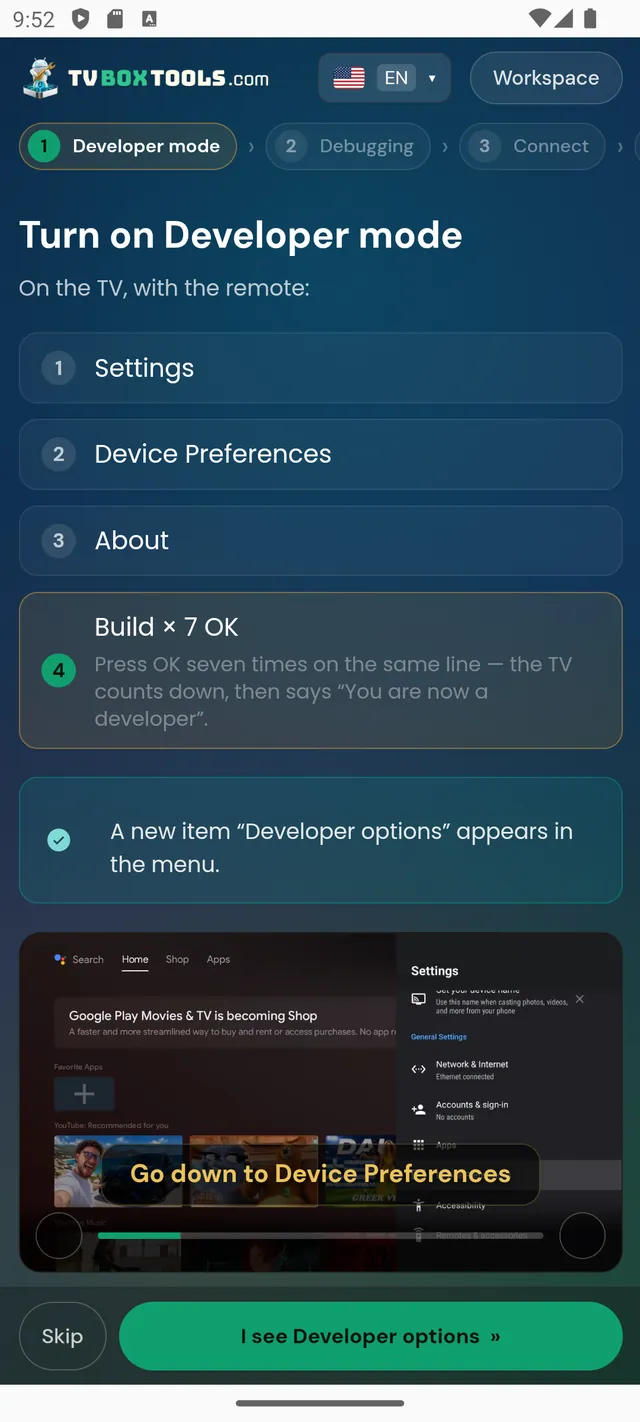
- Turn on debugging on the boxSettings › Device Preferences (or System) › About › press Build number seven times. Then Developer options › USB debugging, or Network / Wireless debugging on Android 11 and newer.
- Open TV Launcher Manager and connectFrom a Windows PC or an Android phone on the same Wi‑Fi, or in Chrome with a USB cable. Press Allow on the TV once.
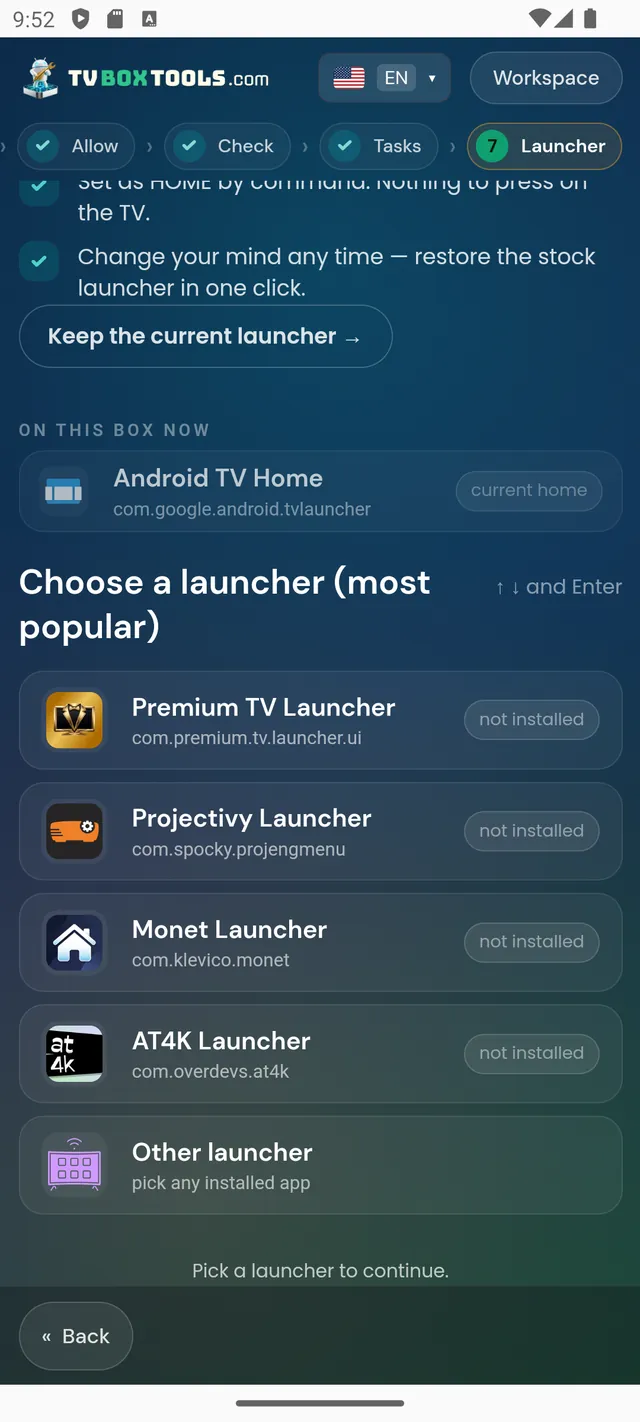
- Pick FLauncherThe tool reads the box for every app that can be a home screen and lists them. It records the current home first, sets yours, and checks that the box agrees.
- Press HOMEFLauncher opens. Nothing on the TV has to stay running. Restore is one tap, any time.
The tool never installs a launcher. If it does not find one on the box, it lists the known ones by name with a link to Google Play — you install from there and run it again.
Download TV Launcher Manager
Free · No account · Undo with one tap
Downloador on the TV, with the Downloader app — code2123033

Route B · FLauncher's own switch
FLauncher ships no accessibility trick for the HOME button — by design it stays a plain launcher and leaves the home setting to the system. That is not a gap here: Routes A and C are the intended way to make it HOME, and they are also the ones that hold on Android TV 14.
Route C · By hand — for the technically minded
You do not need this route. Route A runs these exact commands for you, automatically — it verifies the result and records the undo. They are documented here for people who like doing things by hand, and so you can see there is no magic inside the tool.
See the exact commands — TV Box Tools runs them for you, automatically
- Enable Developer options and debuggingSame as Route A, step 1.
- Get an ADB shellA computer with platform-tools (adb connect <TV IP>:5555), or an ADB app on your phone. On the TV choose Always allow.
- Run the command for your boxAndroid TV (Shield, Sony, Xiaomi, Philips…) uses the first package; Google TV (Chromecast with Google TV, onn, Google TV Streamer, newer Sony/TCL) uses the second.
- Press HOME and choose FLauncherPick it, then Always.
adb shell pm disable-user --user 0 com.google.android.tvlauncheradb shell pm disable-user --user 0 com.google.android.apps.tv.launcherxKnow what you are doing: with the stock launcher disabled and FLauncher uninstalled, the TV has no home screen until you run the undo. Keep the ADB app or computer at hand.
adb shell pm enable com.google.android.tvlauncherQuestions
Does this work on Android TV 14?
Routes A and C do: they set the home app from outside and need no service on the TV. Route B, the launcher's own accessibility switch, is the one Android TV 14 turns off.
Do I need root?
No. Only USB or Wireless debugging, which you turn on in the box's own settings and can turn off again afterwards.
What about Fire TV?
Not covered. Amazon closed the route for custom launchers in October 2025 and newer sticks cannot sideload at all. We would rather say so than sell a workaround that breaks.
Will FLauncher update normally afterwards?
Yes. Nothing here touches the launcher itself — only which app the box opens on HOME.
Can I go back?
Always. Route A has a Restore button; Route C is undone with pm enable. The stock launcher is never uninstalled.
Why does FLauncher keep switching back after a reboot?
Because HOME was held by FLauncher's accessibility service, and the reboot — or an update, or a force-stop — switched the service off. It is not a bug in FLauncher. Routes A and C set the home app itself, so there is no service to lose.
Why does the stock home flash for a second before FLauncher opens?
That flicker is the accessibility route racing the system: the stock launcher opens first and the service replaces it. With the home app set over ADB there is nothing to race — HOME opens your launcher directly, no flash.
“Restricted settings” will not let me switch the accessibility service on.
On Android 13 and newer a sideloaded app needs Apps › [the launcher] › ⋮ › Allow restricted settings before its accessibility switch will hold. Routes A and C need none of this — they do not use accessibility at all.